
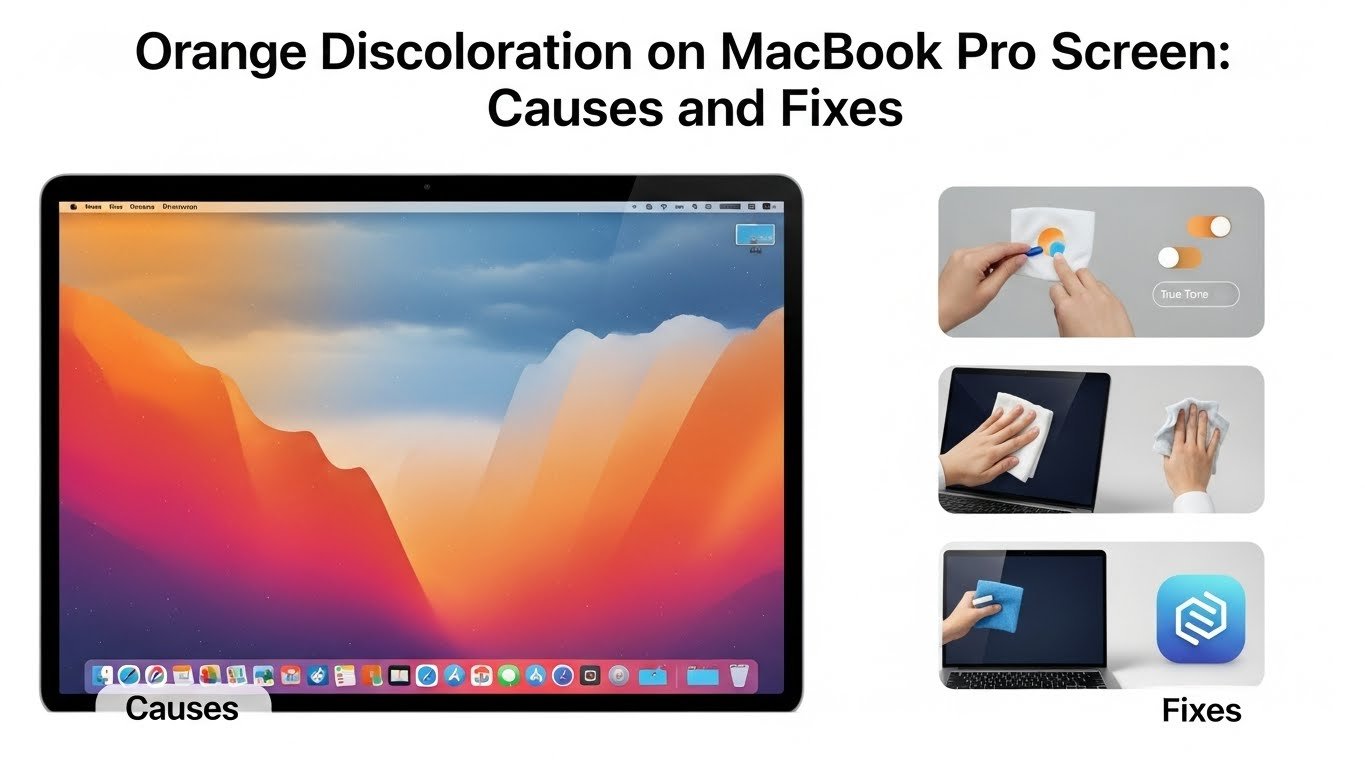
Have you ever opened your MacBook Pro only to be greeted by an unexpected splash of orange on your screen? It can feel like a scene from a tech horror movie. This discoloration not only disrupts your work but also raises concerns about the health of your beloved device. If you’re grappling with this frustrating issue, you’re not alone. Many users have encountered this peculiar problem, and luckily, there are ways to address it. In this post, we’ll dive into the potential causes behind that pesky orange hue and explore practical solutions to restore your screen’s vibrant clarity. Let’s get started!
Possible causes of orange discoloration on macbook pro screen
Orange discoloration on a MacBook Pro screen can be frustrating. Several factors might contribute to this issue.
One common cause is a malfunctioning display cable. A loose or damaged connection can lead to color distortions, including that unwanted orange hue.
Another potential culprit could be software glitches. Occasionally, updates or specific applications may interfere with your display settings, resulting in unexpected color shifts.
Additionally, hardware problems like failing graphic cards can also manifest as discoloration on the screen. Keeping an eye on performance issues might help you identify if that’s the case.
Temperature fluctuations are worth considering. Overheating and exposure to extreme temperatures can harm your device’s internal components and affect screen coloration over time.
How to troubleshoot and fix the issue
Start by checking your display settings. Go to System Preferences, then Displays. Ensure that Night Shift isn’t activated, as it can alter color temperature and cause orange hues.
Next, try resetting the NVRAM/PRAM. Shut down your MacBook Pro. Turn it on while holding Command + Option + P + R until you hear the startup sound twice. This reset might resolve minor display issues.
If those steps don’t work, connect an external monitor to see if the problem persists there too. If the external screen displays normal colors, it’s likely a hardware issue with your MacBook’s screen.
Running a software update is another good idea. Sometimes bugs in macOS can lead to unexpected visual changes.
Consider running Apple Diagnostics to check for hardware problems automatically. Restart while holding D and follow on-screen instructions for testing.
Common misconceptions about orange discoloration on macbook pro screen
Many users assume that orange discoloration on a MacBook Pro screen is solely due to hardware failure. While this can be a reason, it’s not the only culprit.
Some believe that adjusting brightness settings will eliminate the issue. However, this often provides only temporary relief at best.
Another misconception involves thinking that using third-party software might resolve display problems. In reality, many of these apps can exacerbate issues instead of fixing them.
A common myth is that all models are equally affected by this problem. The truth is specific versions have unique vulnerabilities related to screen technology and components.
Some users think they can safely ignore minor discolorations until they worsen. This approach may lead to more severe issues down the line if left unaddressed.
Prevention tips for maintaining a healthy macbook pro screen
To keep your MacBook Pro screen in top shape, start by using a microfiber cloth for regular cleaning. This prevents scratches and removes dust without damaging the surface.
Consider adjusting the brightness settings to avoid strain on both the display and your eyes. Lowering brightness during dark environments can help maintain color integrity over time.
Avoid exposing your device to extreme temperatures or direct sunlight. Excessive heat can warp components, while cold conditions may affect performance.
Be mindful of where you place your laptop. Using it on uneven surfaces can lead to pressure points that might cause display issues later on.
Invest in a quality screen protector. It adds an extra layer of defense against scratches and potential liquid spills, keeping those vibrant colors intact longer.
When to seek professional help
If you’ve tried troubleshooting the orange discoloration on your MacBook Pro screen without success, it might be time to consider professional help. Persistent issues can indicate underlying hardware problems that are best assessed by an expert.
Look for signs like flickering or other color distortions that don’t go away with typical fixes. These symptoms could suggest a failing display or graphics card.
Additionally, if your device is still under warranty, seeking assistance from Apple support or an authorized service provider is wise. They can diagnose the issue accurately and determine if repairs are covered.
Don’t hesitate to reach out for professional advice if you feel uncertain about handling technical aspects yourself. The right expertise can save you time and prevent further damage to your beloved device.
Conclusion
Encountering orange discoloration on your MacBook Pro screen can be frustrating, but understanding the causes and fixes is essential for a smooth experience. Regular maintenance, proper usage habits, and awareness of potential hardware issues will go a long way in keeping your device healthy.
If you notice persistent problems despite troubleshooting efforts, don’t hesitate to seek professional help. Your MacBook’s display is crucial for productivity and enjoyment; ensuring it’s in top condition allows you to fully appreciate its capabilities. Stay informed about preventative measures, and you’ll likely avoid unwanted surprises down the road. A little attention now can save you time and hassle later.